



How to read a trail map for beginners comes down to six specific things: the legend, your starting position, the scale, contour lines, key landmarks, and your offline backup. Get those six right before you start hiking and you know what the trail is asking for before it asks. Skip them and you’re carrying a map you can’t use.
⚡ Quick Trail Takeaways
- Contour Line Spacing: Closely spaced contour lines indicate steep cliffs; widely spaced lines represent gentle, flat grades.
- Map Orientation: Align the map’s north needle with the terrain’s actual north using your compass or GPS orientation arrow.
- Key Legend Icons: Identify water sources (blue), trail junctions (crossbars), and boundary lines before stepping onto the path.
I was in the second camp for my first year of hiking. My system was simple: AllTrails app open, blue dot on the trail, follow the dot. It worked until a hike near a dead zone where the app stopped updating about a mile in. I had a paper map from the trailhead kiosk folded into my back pocket. I pulled it out, looked at it, and realized I couldn’t extract anything useful from it. The legend was a box of symbols I didn’t recognize. The contour lines were a swirl I couldn’t decode. I had the tool. I just didn’t have the skill.
The map had everything I needed. I just couldn’t read it.
This guide is that skill. Six steps that work on any trail map (digital, paper, or topo overlay on AllTrails) so you know how to read a trail map for beginners before you’re standing on trail needing it. Our beginner hiking guide covers the full preparation picture. This is the navigation piece specifically.
🥾 Oliver’s Trail Notes & Field Observations
When I started hiking in the San Gabriels, I relied entirely on a navigation app until cold temperatures drained my phone battery near Icehouse Saddle. In my experience, learning to read contour lines on a physical topographic map is an indispensable backcountry skill: tightly clustered brown lines show sheer cliffs, while wide contour intervals indicate gentle walking benches.
Why Most Beginners Skip Hiking Map Reading (And Why That’s a Problem)
The dot-following dependency
The default beginner navigation setup is an app with GPS. That works well the majority of the time, which is exactly why most people never develop deeper hiking map reading skills. You don’t miss what you haven’t needed yet.
The problem is that app navigation creates a specific dependency: you follow the dot, not the route. Which means when the dot stops being reliable (battery at 12%, no signal, app freezes at a junction) you’re holding a screen you can no longer use and looking at terrain you haven’t actually learned to read. The trail is right there. The map is right there. You just haven’t connected the two.
Short hikes close to urban areas are forgiving of this gap. Longer hikes, less-marked trails, or anywhere with patchy cell coverage are not.
What beginner trail navigation actually teaches you
Here’s what learning how to read a trail map for beginners actually does: it teaches you to look at the terrain and recognize it from what you studied before you started. The ridge line to your left, the creek that should be coming up, the fork that means turn right not left. That recognition is what beginner trail navigation actually is. The app makes it easier. The skill makes it possible without the app.
The National Park Service publishes downloadable trail maps for every park property at nps.gov, and the USDA Forest Service does the same at fs.usda.gov. Both are free. Knowing how to read them (not just download them) is the habit that turns a phone-dependent hiker into one who’s actually oriented on trail.
Trail Maps vs. Topographic Maps: What Beginners Actually Need to Know
Most beginners don’t know which type of map they’re looking at, and the distinction matters because they give you different kinds of information.
What a standard trail map shows
A basic trail map shows the route as a line, labels key features like parking lots, junctions, viewpoints, and facilities, and uses symbols to indicate water sources and trail difficulty. It’s a simplified diagram. Most paper kiosk maps at trailheads are this type. AllTrails’ default view is this type.
Standard trail maps answer one question: where does the trail go? They’re excellent for following the route, identifying junctions, and understanding the layout of the terrain you’ll cover. Good hiking map reading starts here, with the simplest version of the tool.
How to use a topographic map and what it adds
A topographic map layers elevation data through contour lines (curved lines that show how the terrain rises and falls across the whole area, not just along the trail). USGS topo maps are the standard example. Learning how to use a topographic map is worth doing from the start, because AllTrails has a topo overlay you can enable by tapping the layers icon on the map screen, and it’s genuinely useful even on your first few hikes.
Topo maps answer a different question: how hard will this actually be? They show you where the climbing lives before you’re standing at the bottom of it.
Which type you’ll encounter on day hikes
For most day hiking on maintained trails, you’ll mostly encounter simplified trail maps. Steps 1 through 3 of this guide apply to those. Contour lines (Step 4) are worth learning early because they close the gap between what the difficulty label says and what the terrain actually delivers. Use both whenever you can get both.
🥾 Map Orientation Field Drill
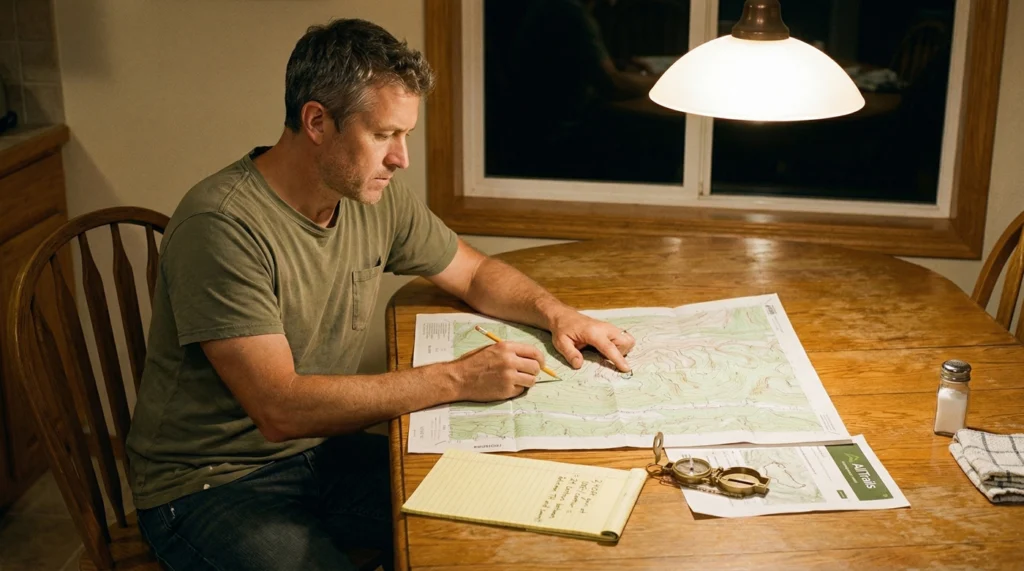
During field navigation workshops I led near Red Box Station, the most frequent beginner error was reading a map with north facing up while walking south. I teach hikers to physically rotate the topographic sheet until the printed ridge features line up directly with the actual mountain peaks and drainages visible in front of their eyes.
How to Read a Trail Map for Beginners: 6 Steps
Step 1: Start With the Legend (It’s the Decoder Ring)
Every trail map has a legend: a small box, usually in one corner, that defines what every symbol means. Without it, you’re guessing at what the map is telling you. With it, the whole map discovers. This is where how to read a trail map for beginners starts, every single time, on every single trail.
Trail lines: what solid vs. dashed means
Solid lines indicate maintained, official trails. Dashed lines typically indicate unmaintained routes, connectors, or alternate paths that are less clearly marked on the ground. For your first several hikes, stick to solid lines. The terrain on a dashed-line route is less predictable and asks more navigation skill than a well-marked maintained trail does.
Trail colors and what they tell you at junctions
On multi-trail systems, each trail has its own color. The legend tells you which is which. Your trail is the blue one; the red one branches off at the junction three-quarters of a mile in. Knowing that before you start means you’ll recognize the junction when you get there and take the right fork automatically.
This is the most common beginner navigation mistake: arriving at a junction and not knowing which trail continues and which is the branch. The legend, combined with Step 2, eliminates that confusion before you’ve taken a single step.
Step 2: Find Yourself on the Map at the Trailhead
Before leaving the parking lot, locate the trailhead marker on the map. On paper kiosk maps, it’s often a “You Are Here” star. On AllTrails, it’s where your blue dot sits when you arrive. Skipping this step is one of the most reliable ways to make beginner trail navigation harder than it needs to be.
The two orientation questions to answer before you start
Answer these before you take your first step.
One: which way does the trail go from this exact point? Left? Straight ahead? Does it start as a loop or an out-and-back?
Two: what’s the first recognizable landmark I should hit? A creek crossing, a fork, a viewpoint, a trail sign. This becomes your first verification point. When you reach that landmark, you confirm your position on the map and reset your mental picture from there.
This takes 90 seconds at the trailhead. It’s also the thing most people skip because they’re excited to start. Don’t skip it. Getting oriented once at the beginning prevents the slow drift off-route that happens when you follow the trail on feel without anchoring to the map.
Verifying your GPS position in AllTrails
When you arrive at the trailhead, confirm the blue dot is sitting on the trail you’re planning to hike. If it’s off by several hundred feet, GPS accuracy could be the reason. Check whether the trailhead parking lot aligns with the map position. If the dot is well off-trail, you might be at the wrong trailhead. It’s worth 30 seconds to verify before you walk anywhere.
Step 3: Use the Scale to Understand What Distance Really Means
Every hiking trail map includes a scale bar (a short labeled line, something like “0.5 mi” or “1 km”) that tells you how map distance translates to real distance. Most guides rush past this. It changes how useful the map is.
The thumb-ruler method for paper maps
Hold your thumb (roughly one inch) next to the scale bar and see how many real miles that represents on this specific map. You now have a rough ruler you can apply throughout the hike. Two thumb-widths to the junction means roughly one mile. Half a thumb-width to the water source means it’s close.
Maps have different scales. A regional trail map might compress five miles into a short span of paper. A trail-specific map might show one mile as a long line across the sheet. The visual distance on paper tells you nothing without knowing the scale first.
How AllTrails handles distance
On AllTrails, distance is calculated automatically and the scale is shown in the corner of the map view. Use it the same way as a paper map: visually estimate how far key features are from each other to build a mental picture of the route’s pacing before you’re walking it.
One thing worth checking: the listed mileage for an out-and-back trail on AllTrails is the round trip total. A trail marked “4 miles” means 2 miles out and 2 miles back. Know which type your trail is before you start.
Step 4: Reading Contour Lines for Hiking — What They Actually Mean
Contour lines look intimidating. They’re not. Here’s what they actually tell you, stripped of complexity. Reading contour lines for hiking is the part of how to read a trail map for beginners that most guides either skip entirely or bury in technical language. It’s also the part that changes how you evaluate a trail before you commit to it.
What contour lines actually show
Each contour line represents a specific elevation. The standard interval on a USGS topo map is 40 feet, so each line you cross while moving uphill means you’ve gained 40 feet of elevation. Lines spaced far apart mean gradual terrain. Lines bunched up close together mean steep terrain.
Dense lines equal climbing. Spread-out lines equal flat or gentle. That’s the whole thing.
For hiking purposes, the practical question is: where on my route do the lines get dense? Trace the trail line mentally on a topo overlay. Contour lines packed together in the first third of the trail mean a real climb early. Lines that spread out after the first mile mean a gradual finish. Dense lines throughout mean sustained elevation, which the difficulty rating may or may not reflect honestly. This is how you catch the trail that looks manageable on paper but is actually steep.
How to use the AllTrails topo overlay before you commit
AllTrails’ topo overlay is available by tapping the layers icon, usually a square in the corner of the map screen. The elevation profile beneath the map (the silhouette chart showing highs and lows along the route) shows the same information in a more visual format.
I’ll state this plainly: the elevation profile is the most useful single screen in the AllTrails app for a beginner. More useful than the star rating. More useful than the difficulty label. A sharp early spike on the profile tells you exactly what the first mile is going to ask of you. Check it before you commit to the trail, not at the trailhead.
Step 5: Identify Landmarks and Decision Points Before You Start
This step turns the map from a passive reference into an active planning tool. Spend five minutes before you start hiking (at the trailhead or at home the night before) identifying these four things on the map.
The four features to find on the map before you hike
The main junction. Any point where your trail meets another and you have to choose a direction. Note which trail continues your route and whether there’s a physical landmark nearby that you’ll use to confirm you’re at the right junction.
The halfway point. Roughly where it falls on the route. If you’ve been hiking longer than expected and haven’t hit your halfway landmark, stop and verify your position on the map. Better to check early than to realize at mile 4 that you took the wrong branch at mile 2.
Water sources. Any creek, spring, or water station marked on the map. Note whether they fall before or after the sections where you’ll be working hardest. Knowing the creek crossing is at mile 1.5 means you know your hydration plan for the early stretch.
Exit options. Most maintained trail systems have multiple routes back to the trailhead or to a road. Knowing where they are before you need them means unexpected changes (weather rolls in, someone twists an ankle, you’re short on daylight) become manageable rather than stressful.
💡 Trail Tip: Trace the whole route with your finger on the paper map before you start. It takes 90 seconds and gives you a mental picture of the entire hike that a phone screen doesn’t provide in a single view. You’ll recognize landmarks when you reach them instead of encountering them as surprises.
Step 6: Download the Offline Map Before You Leave Wifi
This step is the one that would have prevented my dead-zone situation. Offline maps on AllTrails work regardless of what your cell service is doing.
How to test your AllTrails offline map properly
Navigate to your trail page and let the full map load completely (not just the trail card, the actual map, zoomed into the route). Then switch your phone to airplane mode and open the same trail. If the map loads, you have an offline-functional copy. If it shows “offline maps unavailable,” go back on wifi and let it fully load before heading out.
Two things most beginners get wrong: loading the trail card but not the map itself (the card caches; the detailed map doesn’t always), and checking offline functionality only after they’re already on trail with no signal. Do this check at home, before you get in the car. This is the part of your AllTrails map guide workflow that actually matters when something goes wrong.
When to use Gaia GPS instead
For shorter maintained trails near urban areas, AllTrails downloaded offline is sufficient. Gaia GPS is the offline mapping standard for longer or more remote hikes. It’s what many search and rescue teams reference for navigation. It requires a subscription for full offline access, but it’s worth knowing about before you need it.
One rule that isn’t optional: don’t start any hike over 3 miles without a way to see the trail map that doesn’t require cell service. That means AllTrails downloaded offline, a Gaia offline map, or the paper map from the trailhead kiosk. Often all three, because they cost nothing extra and each covers a failure mode the others don’t.
Common Mistakes in Hiking Map Reading That Beginners Make
Checking the map only when confused
By the time you’re confused, you’ve usually already walked past the decision point. The better habit: check the map proactively at the trailhead, at every junction, and any time the trail feels different from what you expected. Reactive hiking map reading is harder than proactive hiking map reading. It also adds anxiety at the exact moment you don’t need more of it.
Using distance without looking at elevation
Distance and elevation are two different pieces of how to read a trail map for beginners, and most people use only the first. A 4-mile trail with 1,400 feet of gain is a fundamentally different experience from a 4-mile trail with 200 feet of gain. The numbers are both on the map. Use both.
Skipping recent reviews for conditions the map can’t show
Trail maps show permanent features: the route, terrain, facilities. They don’t show the washed-out creek crossing at mile 2, the downed tree blocking the junction marker, or the faded blazes on the upper section. Check AllTrails reviews from the last 30 days. If three or four recent reviewers mention the same navigation problem, treat it as current information, not an isolated incident.
Missing the blaze color in the legend
On multi-trail systems, knowing your trail’s color before you start takes 30 seconds and prevents the most common wrong-turn scenario: confidently following a trail that shares your route for a stretch, then diverges when you’re not expecting it. Note it at the trailhead, before you start walking.
Treating the offline download as optional
It isn’t. Signal is the variable. The map is the constant. The offline copy is the version of the map that doesn’t depend on conditions you can’t control. Download it at home, check that it loads in airplane mode, then go hike.
Frequently Asked Questions: How to Read a Trail Map for Beginners
Where do I actually start with how to read a trail map for beginners?
Start with the legend before you look at anything else. The legend is the box in the corner of the map that defines every symbol and color. It tells you what solid lines versus dashed lines mean, what the trail colors correspond to, and what the icons for parking, water, and facilities look like on this specific map. Every trail map uses slightly different conventions. The legend is how you learn this one’s language before you try to read the rest of it. Solid line means maintained trail. Dashed line means unmaintained or informal route. Note your trail’s color. That’s where beginner trail navigation starts on every hike.
What’s the difference between a trail map and a topographic map?
A basic trail map shows the trail route and key features as a simplified diagram (where the trail goes, where the junctions are, where facilities are). Knowing how to use a topographic map adds elevation data through contour lines, which show you where the terrain rises and falls across the whole area. For beginners, learn the standard trail map first, then use contour lines as a second layer for understanding where climbs occur. AllTrails gives you access to both through its optional topo overlay, which makes this easier than it used to be.
How do I understand reading contour lines for hiking on a trail map?
Each contour line represents a set elevation, typically 40-foot intervals on USGS topo maps. Lines spaced far apart equal gradual terrain. Lines bunched together equal steep terrain. For beginner trail navigation, the main question is: where do the contour lines get dense along my specific route? That tells you where the real climbing is, independent of what the difficulty label says. AllTrails’ elevation profile (the chart below the trail map) shows the same information in a more beginner-friendly format. I rely on that profile more than the star rating on any unfamiliar trail.
How do I use AllTrails as a trail navigation tool?
Your location is the blue dot on the trail line. Before leaving for your hike, load the trail map completely on wifi, then test it in airplane mode to confirm you have an offline-functional version. On trail, use the map proactively: at every junction, verify your position against the blue dot before choosing a direction. Check the elevation profile before you commit to the trail. It shows you exactly where the climbs are on the route. This AllTrails map guide covers the core workflow; the app’s help section covers deeper features like waypoints and route recording.
Should I use a paper map or just my phone for hiking?
Both, whenever possible. The phone gives you GPS positioning. The paper map doesn’t run out of battery, doesn’t require signal, and shows you the whole route at once in a way that a phone screen can’t. For a standard day hike, the best setup is AllTrails downloaded for offline use plus the free paper map from the trailhead kiosk if there is one. Use your phone as primary navigation and the paper as your backup. This is not a redundancy worth skipping because the situation where you need the paper map is the same situation where you can’t go get one.
What do dashed lines on a hiking trail map mean?
Dashed lines typically indicate unmaintained trails, unofficial routes, connector paths, or alternate routes, though the specific meaning varies by map system (which is why the legend matters). In general, dashed lines mean the trail is less clearly marked or not an officially designated route. Stick to solid lines on your first several hikes. The navigation on a dashed-line route asks for more experience than a well-marked maintained trail does.
How far in advance should I look at my trail map?
The night before is ideal. That gives you time to identify junctions, study the elevation profile, download the offline map, and check recent reviews for current conditions. Looking at the map for the first time in the parking lot means doing all of that with less time, less clarity, and more distraction. Night before or morning of, at home on wifi. That’s the right window. I’ve started more than a few hikes underprepared because I told myself I’d “just look at it when I get there.” It’s not a good system.
The Map Is the Plan
How to read a trail map for beginners isn’t about becoming a cartographer. It’s about answering six questions before you start: What do the symbols mean? Where am I right now? How far is that junction in real terms? Where does the terrain get steep? What landmarks should I hit and when? And do I have this map available without signal?
Answer those six things and you go into every hike oriented. Not just following a dot. Actually knowing where you are, what’s coming, and how to verify your position when something unexpected shows up. That’s the whole skill. It takes about five minutes at the trailhead once you’ve done it a few times.
The app and the map work together. The app tracks your position in real time. The map gives you the full picture of the route as a single coherent image. Use both, and you’re navigating with two systems: the setup that stays functional even when one of them has a bad day.
For the next layer of navigation confidence, our guide to what trail markers mean covers the blaze and cairn system that runs alongside your map on trail. Our breakdown of trail difficulty ratings explained will help you use what you’ve learned about contour lines and elevation to decode the Easy/Moderate/Hard labels that trail pages rely on.
Next Steps
- Right now: Open AllTrails and pull up a trail you’re considering. Enable the topo overlay (the layer icon on the map screen). Find where the contour lines bunch up. That’s where the hard climbing is.
- Before your next hike: Download the trail map on wifi, switch to airplane mode, and verify the map loads offline. Do this at home, not in the parking lot.
- After your hike: Leave a review on AllTrails noting any navigation issues you ran into (faded blazes, confusing junctions, washed-out creek crossings). That condition data is what makes beginner trail navigation more reliable for the next person.
Related Reads
Saw “1,000 ft elevation gain” on a trail listing and had absolutely no clue if that meant easy or brutal? Here’s what 1,000 feet of elevation gain actually feels like on a real trail, broken down in plain terms.
Watched your phone signal vanish the exact moment you actually needed your map most? Here’s why downloading offline trail maps before you go matters so much, so a dead signal never leaves you stranded on a guess.
Stood at a trailhead kiosk staring at a rating scale that meant absolutely nothing to you? Here’s what those difficulty ratings genuinely mean for someone brand new to hiking, no confusing jargon attached.
Felt that gut-drop moment when nothing on the trail matched what your map was telling you? Here are 5 steps to actually follow if you get lost hiking, the kind that keep a stressful moment from spiraling.
Finished your first few hikes and started wishing someone had just told you the obvious stuff up front? Here are 10 things beginners wish they’d known before their first hike, the kind of advice that usually only comes after learning it the hard way.